
How to connect a GoHighLevel sub-account to ARIQ
Each ARIQ client connects to its own GoHighLevel sub-account. There are two ways to do it. Both read the same GoHighLevel data (API v2), so contacts, deals, appointments, conversations, form submissions and payments are exact either way.
Sign in with GoHighLevel
Recommended. One click, nothing to copy, stays connected by itself.
Private Integration Token
Create a token in the sub-account and paste it with its Location ID.
The old "API key + Location ID" from Business Profile (a key starting with eyJ) is GoHighLevel's retired API v1. It can't read deals, appointments or form submissions reliably, so ARIQ no longer accepts it. Use one of the two ways below.
Who connects GoHighLevel
The connection is saved on one project. An agency connects each client from that client's project. A business connecting its own account uses its own project. Both follow the same Connect button.
Sign in to ARIQ with your agency user. Open the client project, then connect that client's GoHighLevel account. The client does not need an ARIQ login. Use the GoHighLevel login that can already see that client's data.
Sign in to ARIQ, open your project, and connect the GoHighLevel account this business already uses. You approve access with that same account.
Connect it inside ARIQ
- 1Sign in to ARIQ.
- 2Open the project this account belongs to. Switch projects from the left sidebar if you manage more than one client.
- 3Open GoHighLevel from the workspace tabs, or go straight to the GoHighLevel page.
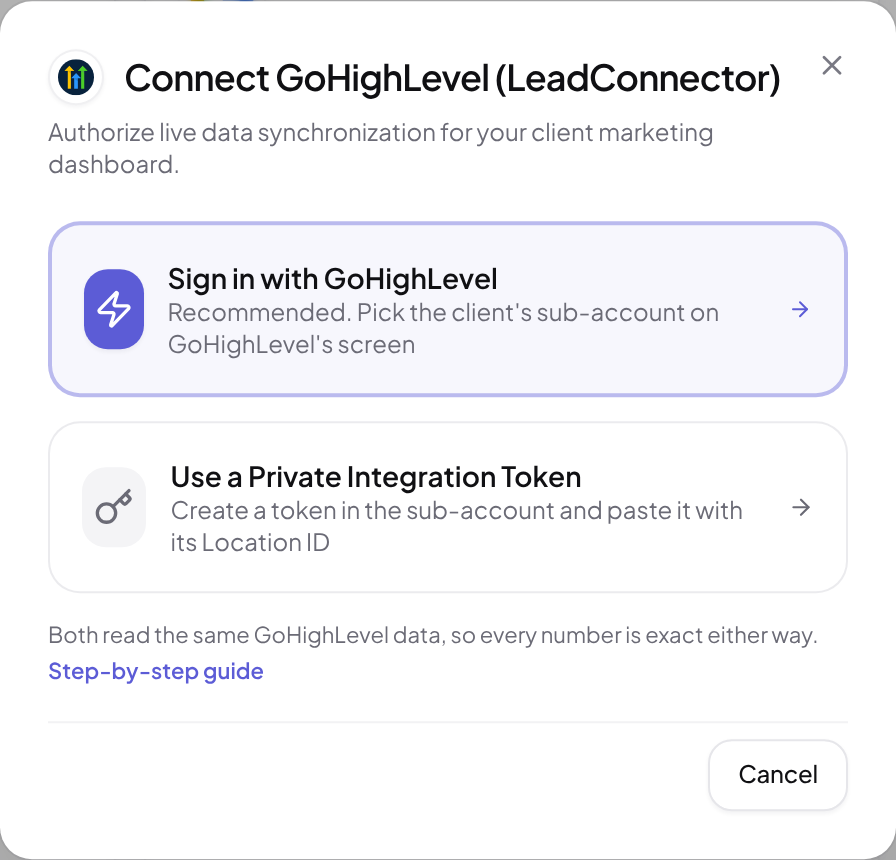
- 4Click Connect, then Sign in with GoHighLevel. ARIQ sends you to GoHighLevel. Sign in with the account that can see this client's data and allow access. You do not paste a password into ARIQ.
- 5Stay on that project and sync. The page shows live numbers only after this account is connected. Another client's project stays empty until you connect it there too.
Sign in with GoHighLevel
GoHighLevel's own sign-in. ARIQ gets the sub-account and its Location ID automatically, and the connection renews itself.
- 1
Open the client's Integrations page in ARIQ
Open the client in ARIQ, go to Integrations, find GoHighLevel and click Connect with GoHighLevel, then Sign in with GoHighLevel.
- 2
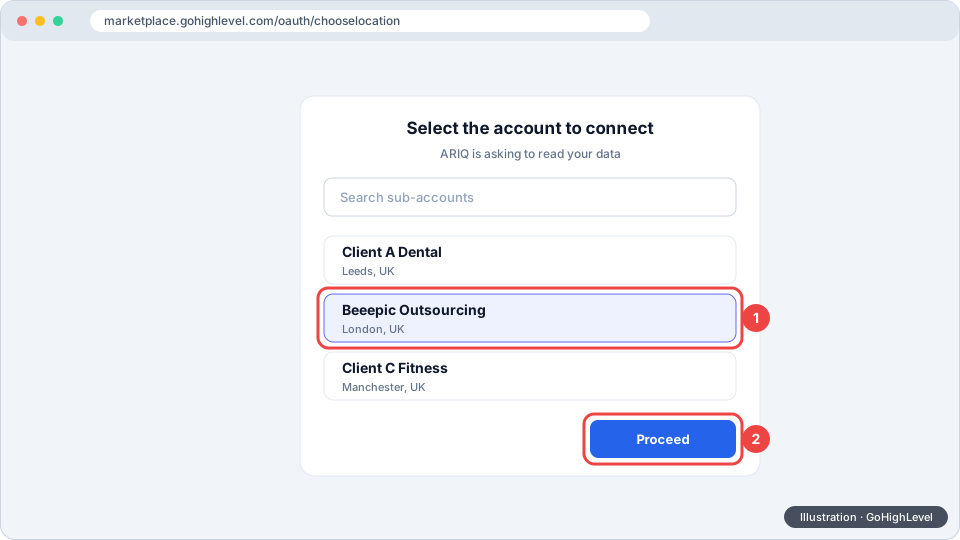
Pick the client's sub-account on GoHighLevel's screen
GoHighLevel asks which account to connect. Choose the client's sub-account (for example Beeepic Outsourcing) and click Proceed. GoHighLevel sends you back to ARIQ and the dashboard fills in.
- 3
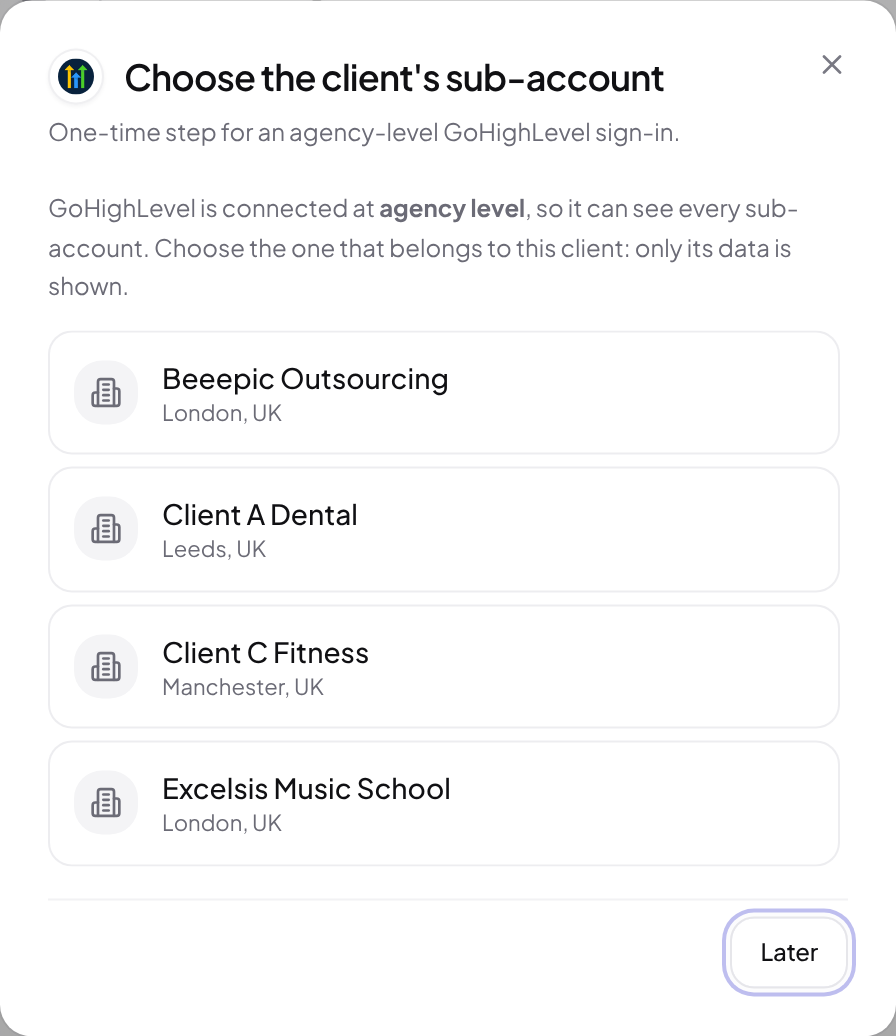
Signed in at agency level? Choose the sub-account in ARIQ
If the sign-in covered your whole agency, ARIQ asks once which sub-account belongs to this client. Only that sub-account's data is shown, never your other clients'. You can change it later from the GoHighLevel card (Change sub-account).
For the ARIQ administrator: GoHighLevel Marketplace app settings
In marketplace.gohighlevel.com → My Apps → your ARIQ app: set Distribution type to Sub-Account (or Agency & Sub-Account) so the sign-in lands on one client, and add these scopes:
contacts.readonly · opportunities.readonly · calendars.readonly · locations.readonly · conversations.readonly · conversations/message.readonly · workflows.readonly · payments/orders.readonly · payments/transactions.readonly · invoices.readonly · forms.readonly · surveys.readonly · calendars/events.readonly · users.readonly
After adding scopes, reconnect each client once so GoHighLevel grants the new ones.
Private Integration Token
A token made inside the client's sub-account. Useful when the Marketplace sign-in isn't available, or the client prefers to create access themselves.
- 1
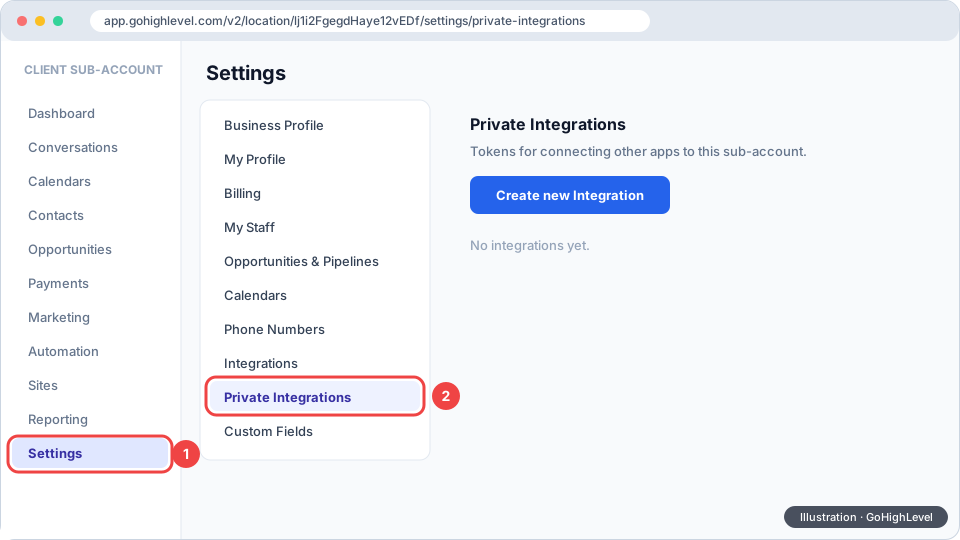
Open the client's sub-account settings
In GoHighLevel, switch to the client's sub-account (not the agency view), then open Settings → Private Integrations. Don't see it? An agency admin turns it on under the agency's Settings → Private Integrations.
- 2
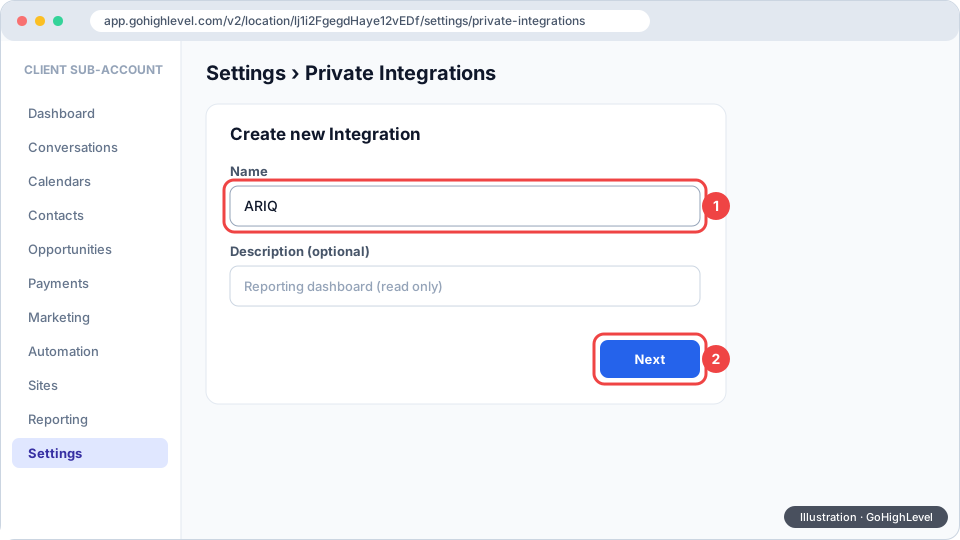
Create a new integration
Click Create new Integration, name it ARIQ (any name works) and continue.
- 3
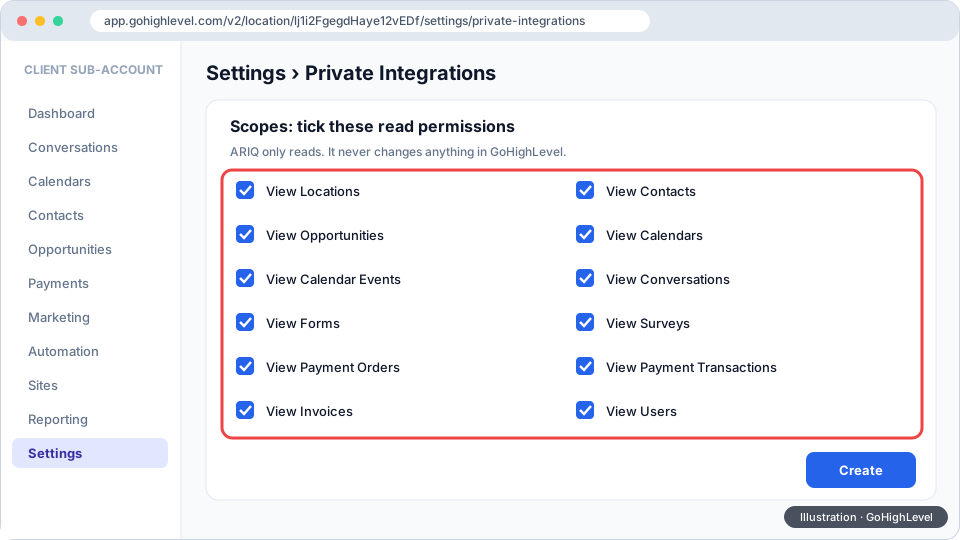
Tick the read permissions
Tick these (ARIQ only reads, it never changes anything): View Locations, View Contacts, View Opportunities, View Calendars, View Calendar Events, View Conversations, View Forms, View Surveys, View Payment Orders, View Payment Transactions, View Invoices, View Users. ARIQ checks each one when you connect and tells you if any is missing.
- 4
Copy the token
GoHighLevel shows the token once. It starts with
pit-. Copy it (keep it private, like a password).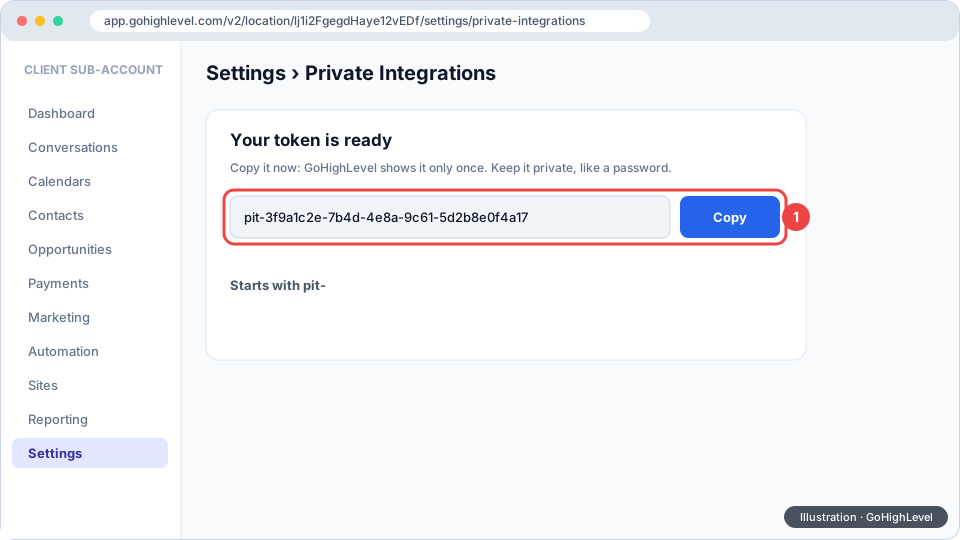
- 5
Copy the Location ID
In the same sub-account open Settings → Business Profile: the Location ID is under General Information. It's also the part after
/location/in the browser address bar.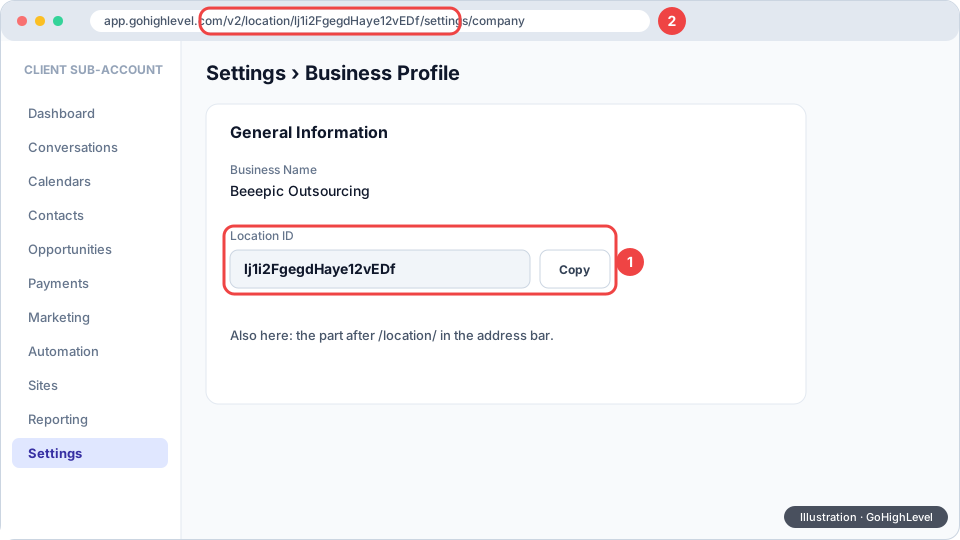
- 6
Paste both into ARIQ
In ARIQ open the client's Integrations → GoHighLevel → Use a Private Integration Token, paste the token and the Location ID and click Connect. ARIQ checks the token against that sub-account straight away.
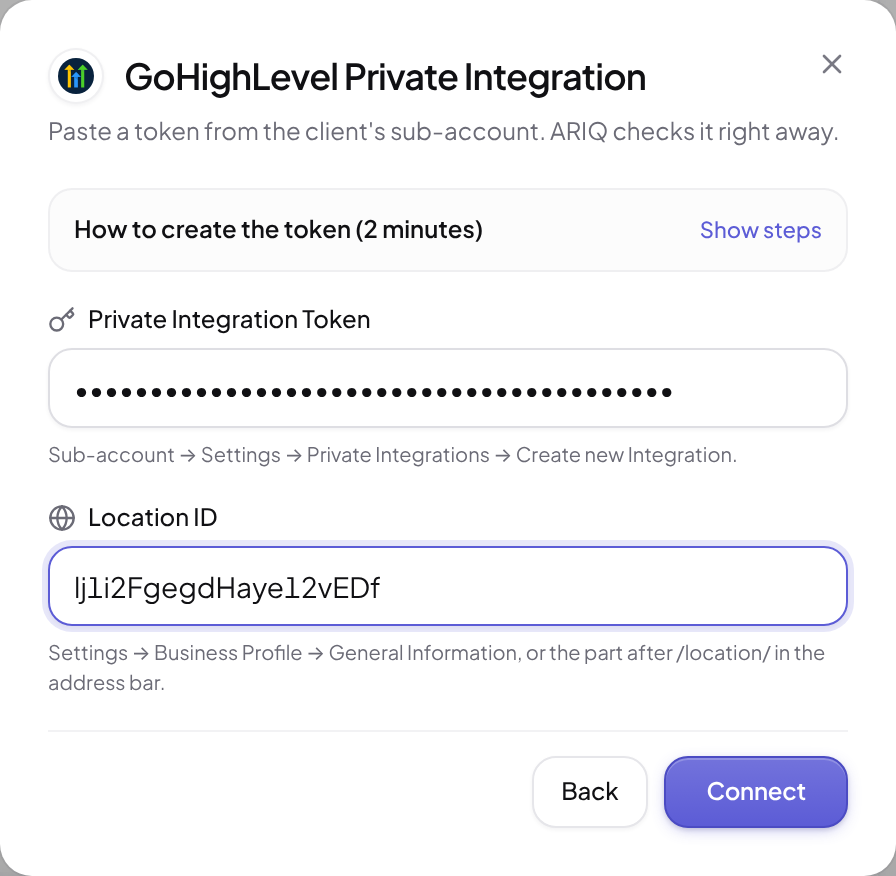
What ARIQ checks when you click Connect
- The token works and belongs to the sub-account whose Location ID you pasted.
- Each permission (12 in all). View Locations, Contacts and Opportunities are required. Any other one that isn't ticked is named on the GoHighLevel card, so a missing permission never shows up as a zero.
- If the token is later deleted or rotated, ARIQ says so and asks for a new one instead of showing empty numbers.
What you'll see in ARIQ
The client's GoHighLevel page follows GoHighLevel's own menu (Dashboard, Conversations, Calendars, Contacts, Opportunities, Payments, Sites, Reputation, Automation, Settings), so everything is where GoHighLevel users expect it. Every number is read live from the sub-account for the dates chosen at the top.
- 1
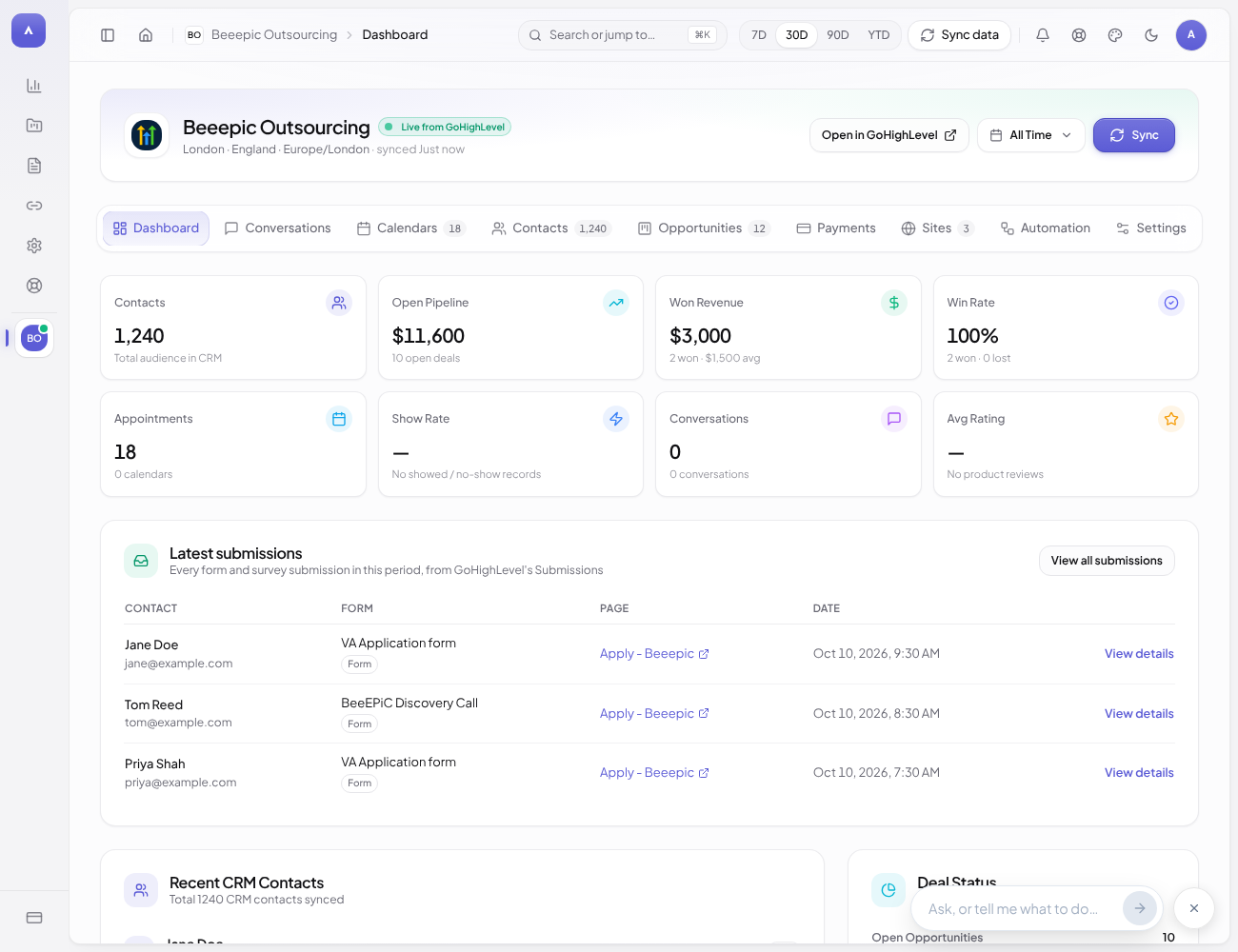
Dashboard
Contacts, open pipeline, won revenue, win rate, appointments, conversations and rating for the period, the latest form submissions, deal status, the pipeline funnel and where leads come from. Open in GoHighLevel at the top jumps to the same sub-account.
- 2
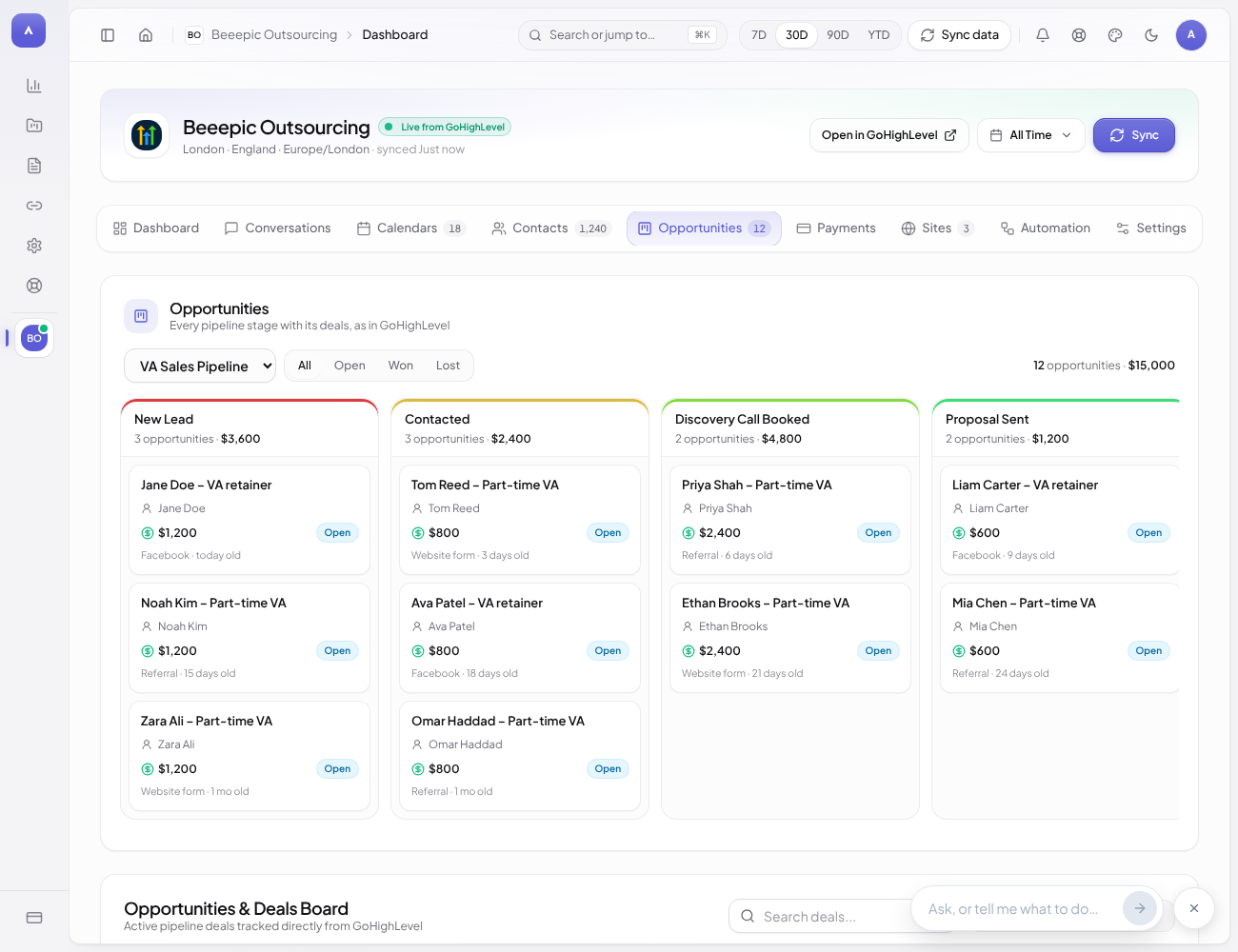
Opportunities: the pipeline board
Like GoHighLevel's board: pick the pipeline, filter All / Open / Won / Lost, and see every stage with its number of deals and total value. Each card shows the contact, value, status, source and how long it has been open, with a link to the deal in GoHighLevel. A list view with search sits below.
- 3
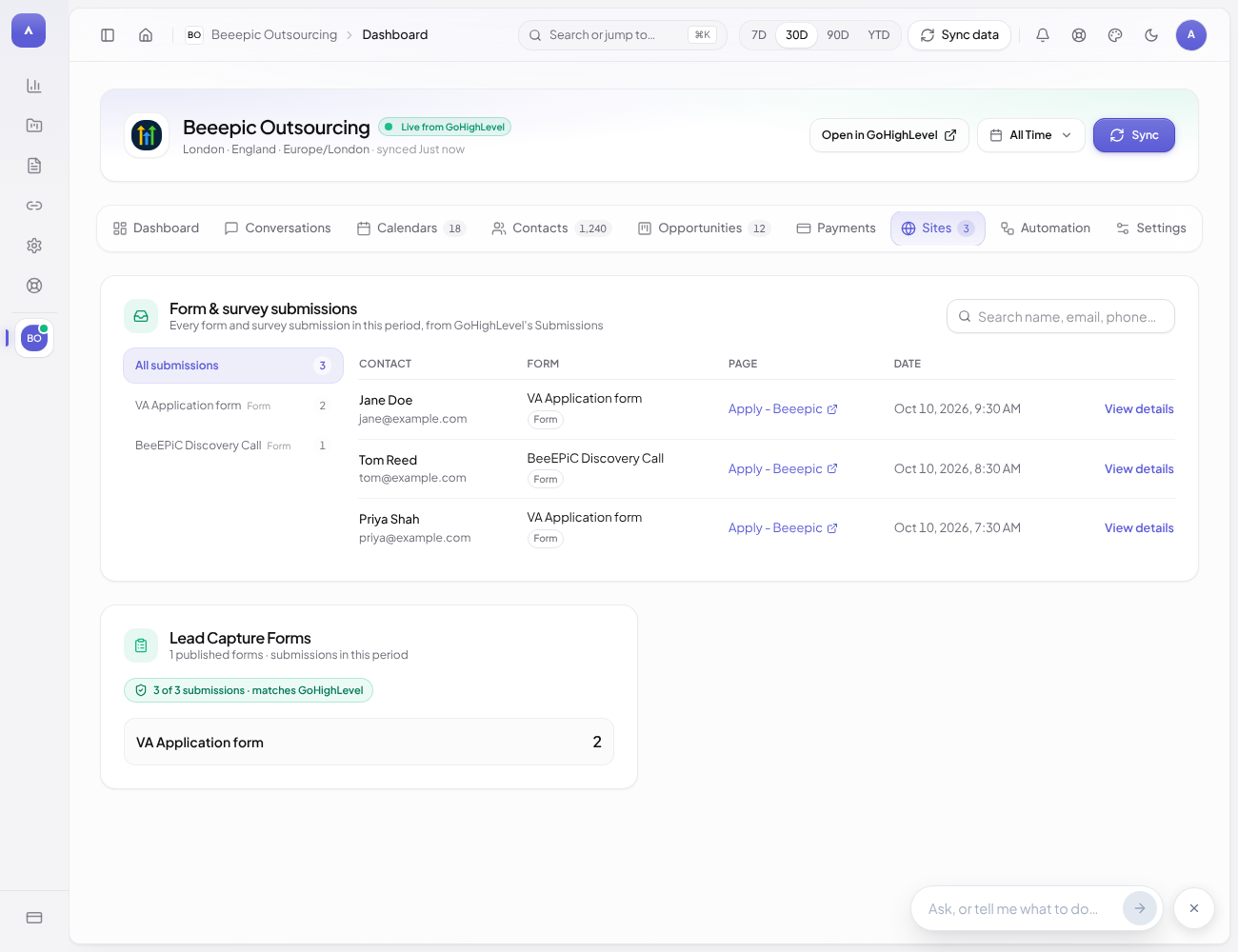
Sites: form and survey submissions
GoHighLevel's Submissions screen: every form and survey on the left with its count, every submission on the right. The count is checked against GoHighLevel's own total ("matches GoHighLevel"). Needs View Forms and View Surveys (token) or the forms and surveys scopes (sign-in).
- 4
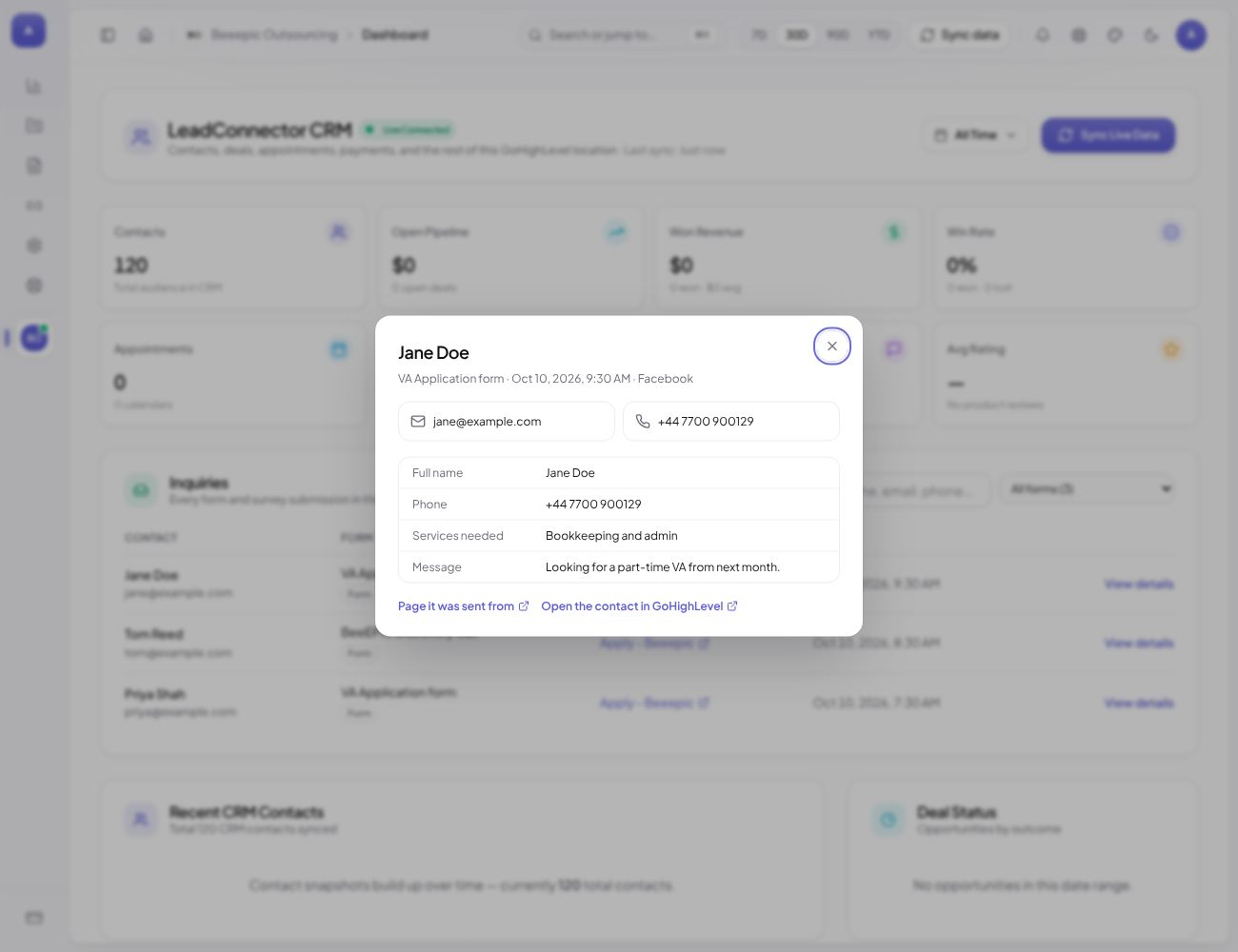
Submission details
Name, email, phone and every field the visitor filled in, with custom fields under their real names, plus the page it was sent from, the source, and a link to the contact in GoHighLevel.
Which one should I use?
| Sign in with GoHighLevel | Private Integration Token | |
|---|---|---|
| Data accuracy | Exact (API v2) | Exact (API v2) |
| Effort | One click, pick the sub-account | Copy a token and the Location ID |
| Stays connected | Renews itself | Until the token is deleted or rotated |
| Needs the Marketplace app | Yes | No |
| Fixing a missing permission | Marketplace app scopes, then reconnect | Tick it on the Private Integration |
Messages you might see
"This is an old GoHighLevel API key (API v1)"
The key from Business Profile (it starts with eyJ) belongs to GoHighLevel's retired API v1. Create a Private Integration Token instead (it starts with pit-).
"This token can't read this sub-account"
The Location ID is from a different sub-account than the token, or View Locations / View Contacts / View Opportunities aren't ticked. Create the token inside the same sub-account whose Location ID you paste.
"Not ticked on the Private Integration, so not shown: …"
Connected, but those permissions are off. In GoHighLevel open Settings → Private Integrations → ARIQ, tick them, save, then reconnect in ARIQ.
"GoHighLevel no longer accepts this Private Integration Token"
The token was deleted or rotated in GoHighLevel. Create a new one and reconnect. Data comes back exactly as before.
No Private Integrations in Settings
An agency admin has to allow it: in the agency view open Settings → Private Integrations and enable it for sub-accounts.
The sign-in shows my whole agency instead of one client
Pick the client's sub-account in ARIQ when it asks (or use Change sub-account on the GoHighLevel card). For one-click sub-account sign-ins, set the Marketplace app's distribution type to Sub-Account (see below).